
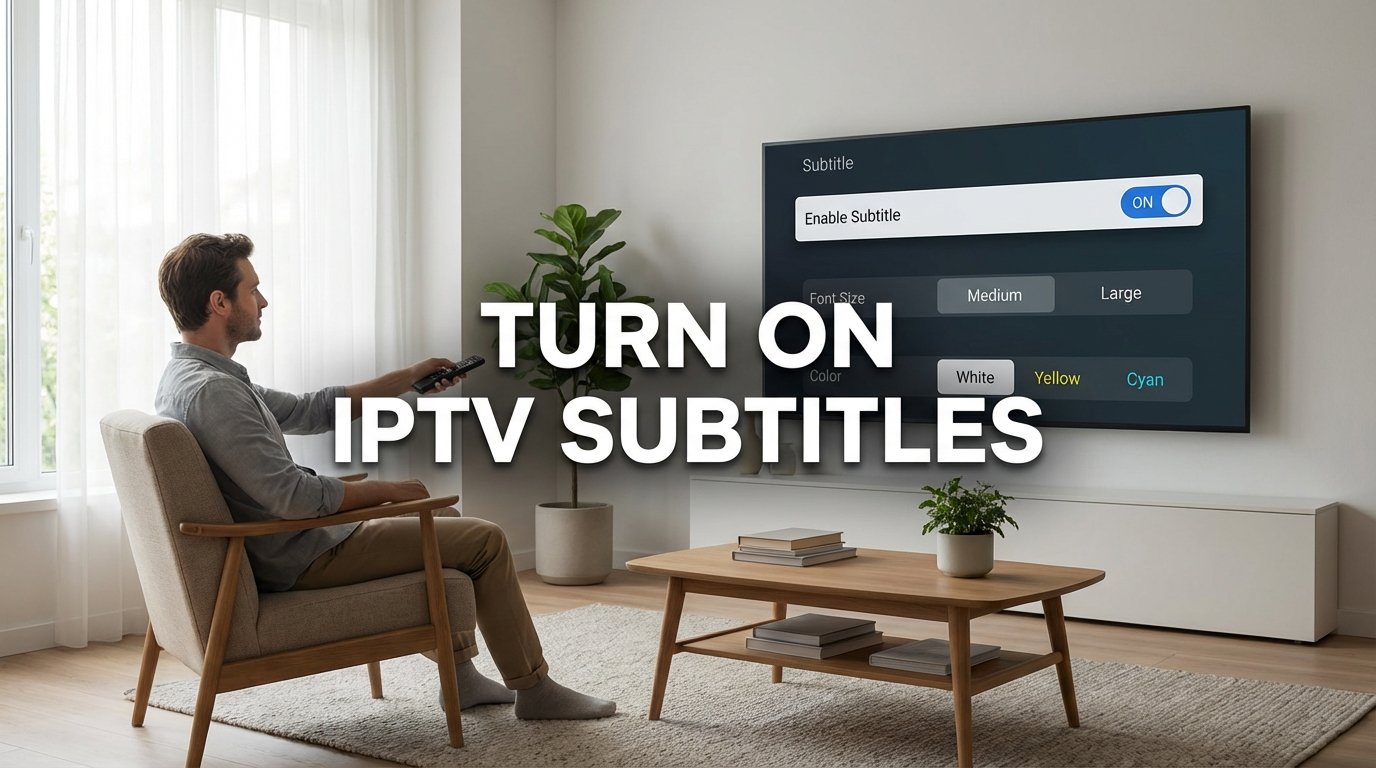
How to Turn on Subtitles on IPTV ?
To turn on subtitles on your IPTV Subscription, open your video, go to the settings icon, select Subtitles or CC, choose your language, and enable subtitles. You can also adjust size, color, and style based on your preference. For player-specific setup, check How to Install IPTV on IBO Player.
How to Enable Subtitles on IPTV Smarters
Follow these steps:
- Open the IPTV Smarters app on your device
- Go to the Settings menu
- Find Subtitle Settings
- Select Enable Subtitles
- Customize options like:
- Font size
- Font color
- Background
- Save your settings and return to playback.
Configure Subtitles on Different Devices
Subtitle settings may vary depending on your device:
- Smart TV: Open settings → accessibility → subtitles
- Streaming devices: Go to system settings → captions
- Mobile devices: Tap screen → select CC icon
- Web player: Right-click video → subtitle options
- You can adjust language, size, and display settings easily.
Frequently Asked Questions
Subtitles are available on some channels, but not all. It depends on your IPTV provider.
No. Subtitles use very little data since they are text-based.
Most IPTV apps do not support external subtitles, but some players like VLC allow it.
Sometimes subtitles may be delayed. You can adjust subtitle timing in player settings.
In many regions, IPTV providers must offer subtitles for accessibility, depending on local laws.